Open the lab
[ YOUR LAB FILE ]
Download the starting topology, then work through the lesson in SwitchLab.
- Save the .swlab file without renaming its extension.
- Open SwitchLab. Import and export controls currently require a desktop-width window. On a smaller screen, Tools → Fit brings the topology into view.
- Select Import Sandbox (folder icon), choose the downloaded file, and confirm the device and cable counts below.
- Select a device, then choose Open device on desktop or its name in the bottom bar on smaller screens. Select CLI for switches/routers or Desktop → Terminal for PCs. Enter
enableonly when the prompt ends in >. - Follow this page beside the simulator. Use a free account to export your work. Reimport the original download to restart; export any work you want to keep first.
Prerequisites
- Complete the VLAN Guided Lab and interpret access-port and trunk tables.
- Recognize the difference between a host subnet, an access VLAN and an 802.1Q trunk.
Topology
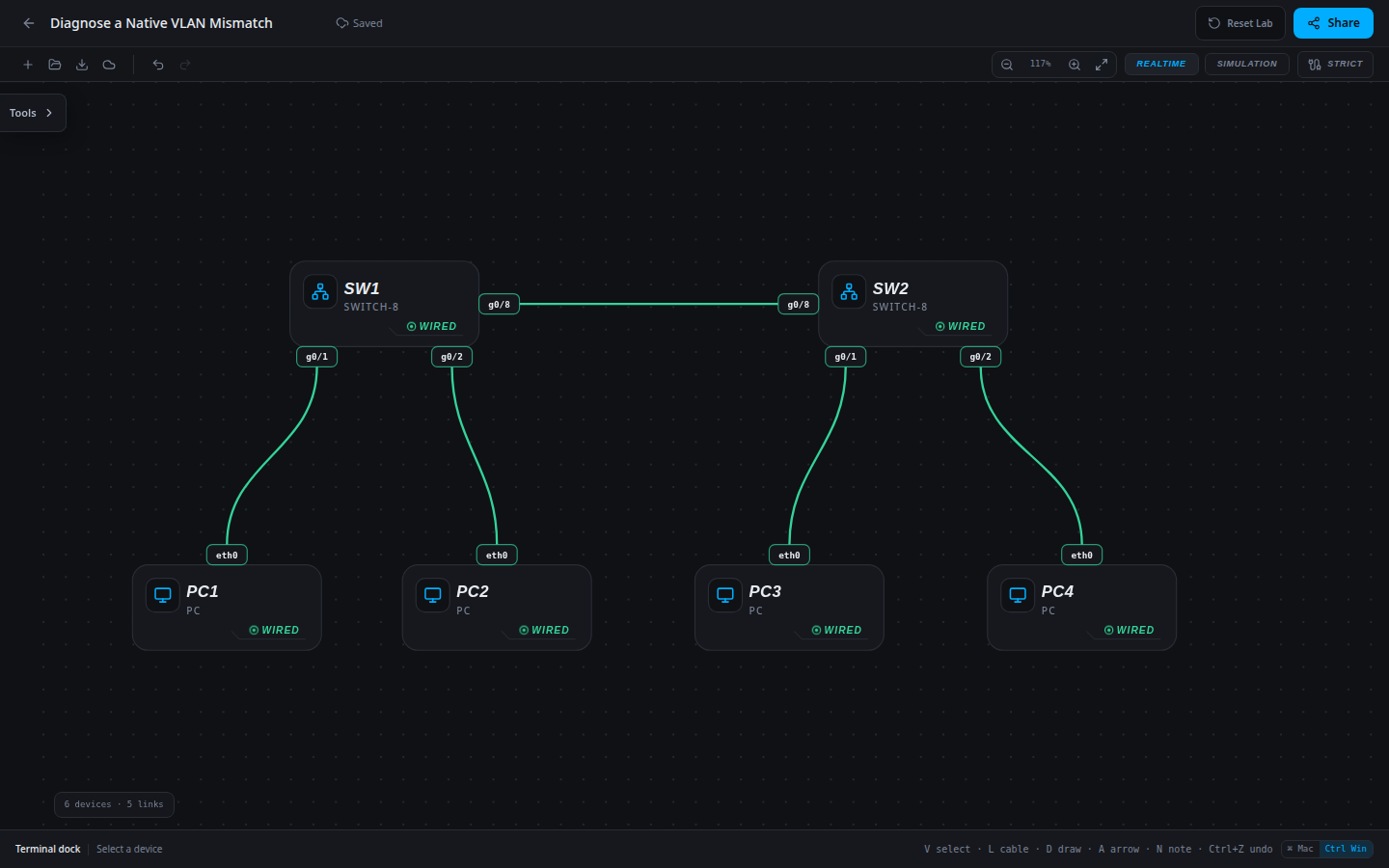
6 devices · 5 links
Scenario
A trunk change moved the staff VLAN to untagged transport on SW1, but the corresponding SW2 change used the wrong native VLAN. Tagged student traffic works while staff traffic fails. Reconcile the endpoints with the approved design.
Objectives
- Explain why a native VLAN mismatch can coexist with working tagged traffic.
- Repair the inconsistent native VLAN on the designated switch.
- Verify native VLAN agreement and both department paths.
CCNA blueprint
200-301 v1.1 objectives — this lab covers the following specific skills, not every subtopic in the domain.
- 2.2.a — Verify and repair an interswitch trunk.
- 2.2.b — Distinguish tagged traffic from native VLAN traffic.
- 2.2.c — Verify native VLAN agreement on both trunk endpoints.
Starting information
- The approved native VLAN is 20 on both g0/8 trunk endpoints. VLANs 10 and 20 remain allowed. SW1 is the reference configuration.
- PC1 and PC3 are students; PC2 and PC4 are staff. Keep the addressing and physical cabling shown below.
- No router is present. Inter-department traffic is not a success condition for this Layer 2 repair.
| Host | IPv4 address | Mask | Gateway |
|---|---|---|---|
| PC1 | 192.168.10.10 | 255.255.255.0 | None |
| PC2 | 192.168.20.20 | 255.255.255.0 | None |
| PC3 | 192.168.10.30 | 255.255.255.0 | None |
| PC4 | 192.168.20.40 | 255.255.255.0 | None |
| Device / port | Device / port |
|---|---|
| PC1 / eth0 | SW1 / g0/1 |
| PC2 / eth0 | SW1 / g0/2 |
| SW1 / g0/8 | SW2 / g0/8 |
| PC3 / eth0 | SW2 / g0/1 |
| PC4 / eth0 | SW2 / g0/2 |
Tasks
- Predict whether a total uplink outage would explain the reported symptom. Test the student path and the staff path before changing anything.
- Inspect VLAN membership, both trunk tables and the relevant interface configurations. Record the discrepancy and explain how it prevents the failed path.
- Apply the smallest correction consistent with the approved starting information. Preserve all addresses, cables and working department settings.
- Repeat both directions of staff traffic and both directions of student traffic. Compare the repaired configuration with your diagnosis, then save the switch configuration.
Useful commands
show vlan brief
show interfaces trunk
show running-config
show running-config interface g0/8
copy running-config startup-config
Progressive hints
Hint 1
Compare the successful student path with the failed staff path. Both use the same physical uplink.
Hint 2
The native VLAN determines how untagged traffic is classified. A mismatch can affect that traffic while tagged VLANs still work.
Hint 3
Compare native VLAN values in show interfaces trunk. Change SW2 g0/8 to the approved value, leaving SW1 and the allowed lists intact.
Verification
- The approved native VLAN is 20 on both g0/8 trunk endpoints. VLANs 10 and 20 remain allowed. SW1 is the reference configuration.
- PC1 → 192.168.10.30 and PC3 → 192.168.10.10 succeed.
- PC2 → 192.168.20.40 and PC4 → 192.168.20.20 succeed.
- Inspect the corrected interface configuration; successful pings must not come from flattening the VLAN design.
Solution / walkthrough
Show Solution
Use enable only from a > prompt; if already at #, begin with configure terminal.
SW2
Apply the approved trunk policy on SW2. The student path provides a control before and after the repair; verify the staff path separately.
enable
configure terminal
interface g0/8
switchport trunk native vlan 20
end
copy running-config startup-config
Run every verification check above after the changes. A saved configuration alone does not prove packet delivery.